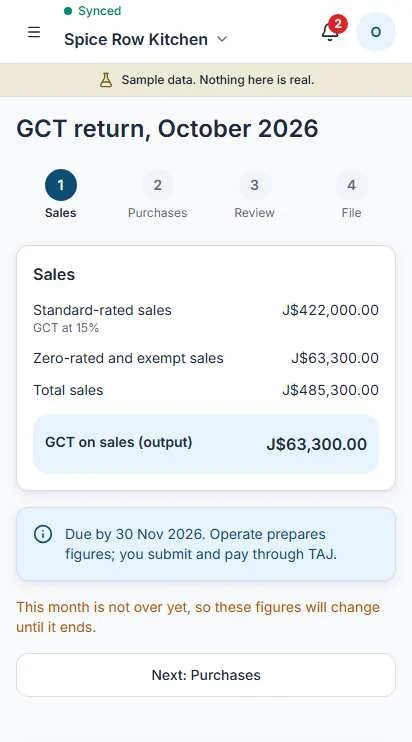
Know where every dollar went.
Invoices, expenses, books and GCT figures in one place. Operate keeps the double-entry underneath, so you never have to think about it.
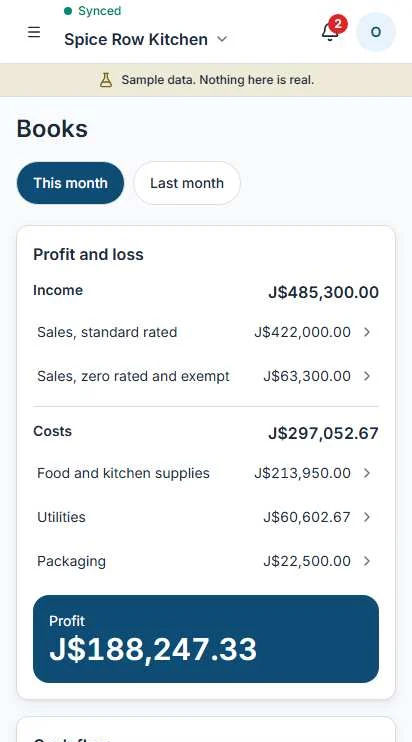
Invoices that look like a business sent them.
Start with a quote, turn it into an invoice in one tap, and keep track until it is paid.
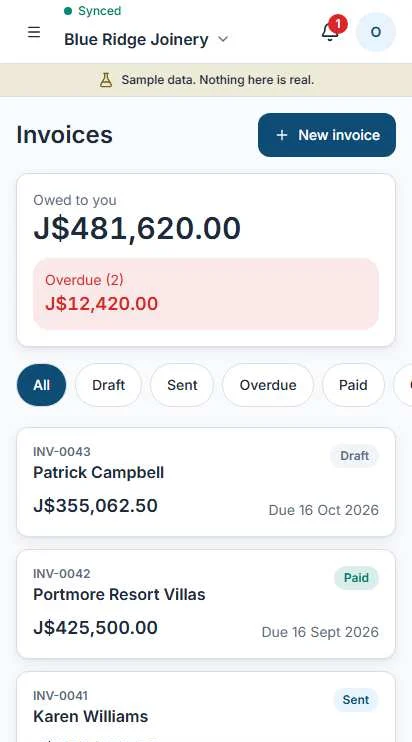

Quotes to invoices
Send a quote. When the customer says yes, turn it into an invoice without retyping a line.
Terms you pick
Due on receipt, 7 days, 14 days, 30 days. Tap a chip, the due date follows.
GCT per line, only if you charge it
Once you say you are GCT registered, each line carries GCT. Before that, it never appears.
TRN and GCT number on the document
Your details sit on every invoice so your customer's bookkeeper has what they need.
A4 PDF
A clean page you can print, email or save.
Open in WhatsApp
Operate prepares the message and the PDF. You read it, then you send it.
Viewed status
See when a customer has opened the invoice, before you chase.
Part payments
Record what came in, by cash, transfer or check. The balance updates itself.
Statements
One page per customer: every invoice, every payment, what is left.
Reminder drafts you edit and send
A polite note, already worded. Change it, then send it yourself. Nothing goes out on its own.
Credit notes are the only way to correct a sent invoice. The original stays as it was, the credit note shows what changed and why.
Ageing: see the late ones first
Every unpaid invoice falls into one of five groups, so you know where to start.
- Not yet dueWithin terms
- 1 to 30 daysPast due
- 31 to 60 daysTime to call
- 61 to 90 daysOverdue
- Over 90 daysNeeds a decision
Your trust book, written down properly.
Some customers buy now and pay later. Each one gets a balance and a dated list of what they took and what they paid.
- See each customer's balance at a glance.
- Record a payment the day it arrives.
- Send a statement so nobody has to remember.
- Sales on account never count in the cash drawer.
Same data, new name. Nothing is retyped when your business registers.
Trust book: Miss Pearl
Example, fictional customer.
Snap the receipt. Confirm what it says.
- 1
Snap
Take a photo of the receipt or the supplier bill.
- 2
Check
Operate fills in supplier, date, total and GCT as a Suggestion. Fix anything that is wrong.
- 3
Confirm
Nothing is saved until you confirm. Then it lands in your books.
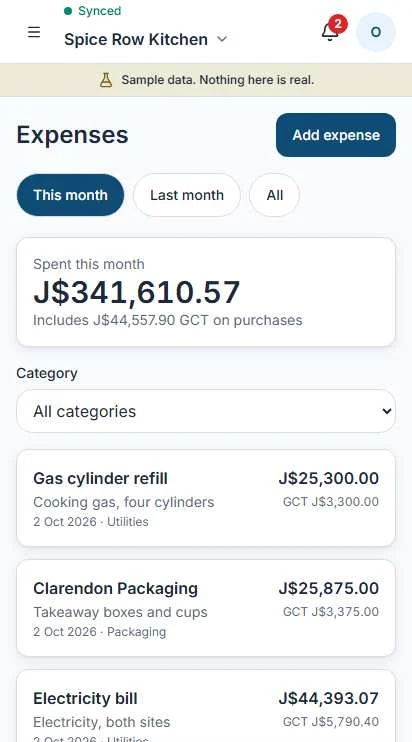
Input GCT captured
The GCT you paid on purchases is recorded with each expense, ready for your return.
Categories
Rent, stock, fuel, wages, repairs. Pick one, or change it later with a reason.
Supplier bills
Enter a bill now, mark it paid when you pay it. See what you owe each supplier.
Books you can read without an accountant.
Every sale, bill and payment is posted as double-entry underneath. You see plain reports on top.
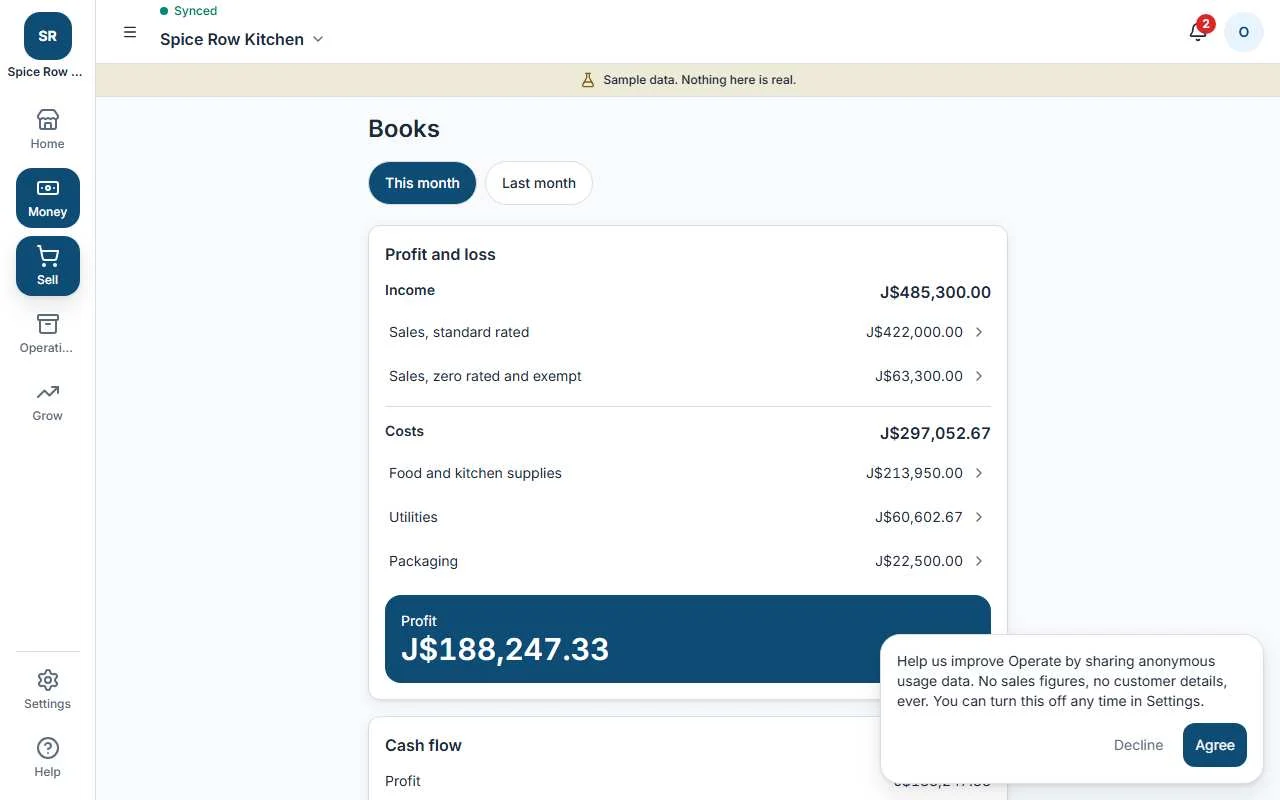
Books in the browser. Sample data.
The three reports you actually use
Entries are never edited. A correction is a reversal with a reason, so the history stays honest.
Cashiers and staff cannot see the books. Owner and accountant can.
Month-end checklist
- Count the drawer and close the last shift.
- Confirm every receipt waiting as a Suggestion.
- Record payments received on invoices and the trust book.
- Enter supplier bills you have not yet entered.
- Review profit and loss, then lock the month.
A working GCT helper.
Enter a month's taxable sales and taxable purchases. See what GCT you collected, what you paid, and the difference.
GCT for the month
Enter amounts as numbers, for example 850000.
The real flow
- 1
Check sales
Review the month's GCT sales.
- 2
Check purchases
Review the GCT you paid on purchases.
- 3
Review figures
See output, input and the net.
- 4
Open TAJ
Go to Tax Administration Jamaica yourself.
- 5
Mark as filed
Tap it once you have submitted and paid.
Operate prepares figures. You submit and pay through TAJ yourself.
What to know
- The return is due by the last working day of the following month.
- The GCT registration threshold is J$15,000,000 a year in taxable supplies.
- Near the threshold, Operate prompts you. Nothing changes until you confirm.
- GCT shows up only once you say you are registered.
Rates live in a dated statutory pack and update when the law changes.