Keep every customer coming back.
Know who buys, what they owe and when to say hello. Take orders and bookings on a page you share on WhatsApp.
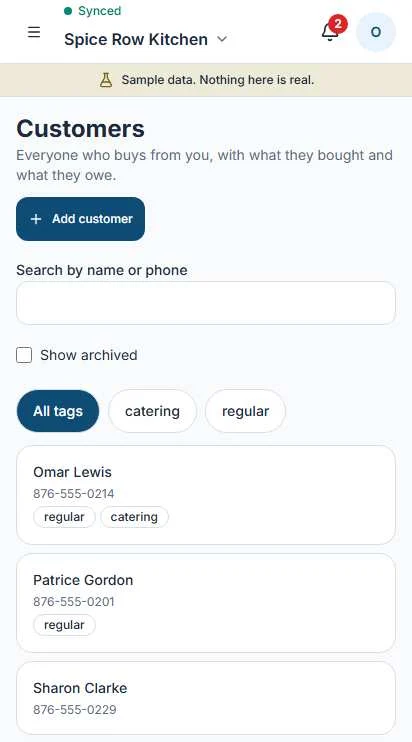
Everyone who buys from you, in one list.
Pick a customer and see the whole story. Sales made at the register and invoices you send land on the same record.
Purchase history
What they bought and when, from the register and from invoices.
Balance on account
What they owe on the trust book. Those sales never count in your cash drawer.
Birthday
Add it once. Operate shows who is coming up so you can send a greeting yourself.
Tags and notes
Mark regulars, catering clients or anyone you need to remember. Filter the list by tag.
WhatsApp, with you in charge.
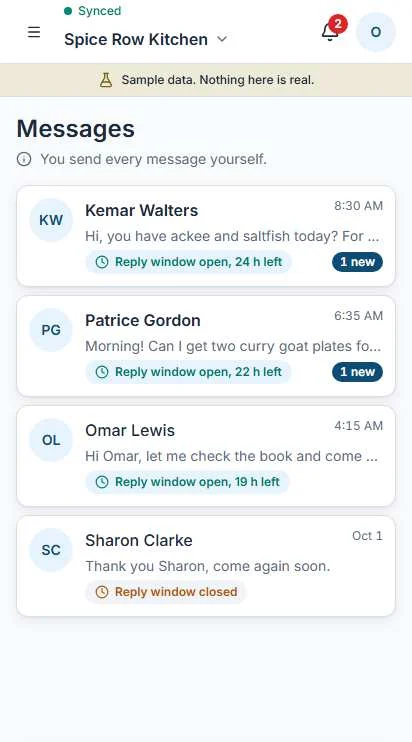
Operate uses the official WhatsApp Business service. Every conversation shows how long the reply window stays open.
Operate drafts a reply. You edit it, then open it in WhatsApp and send.
Use a template instead. You pick it and you send it.
- Drafts are labeled Draft. Nothing changes until you confirm.
- Operate never sends a message without you.
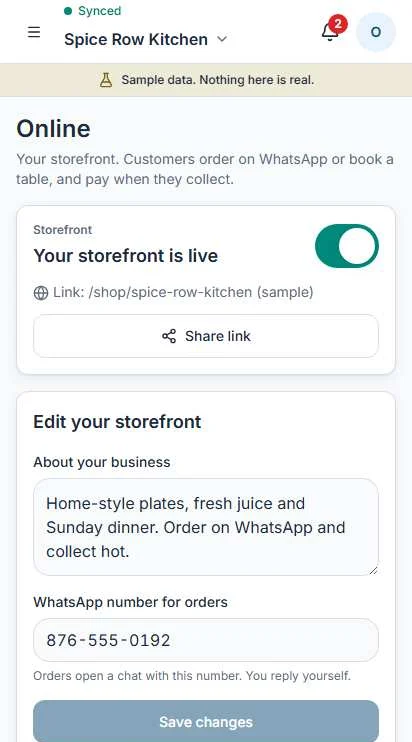
A page you can share. No card checkout.
Your storefront shows your products, hours and parish. Customers order on WhatsApp or book, and pay when they collect.
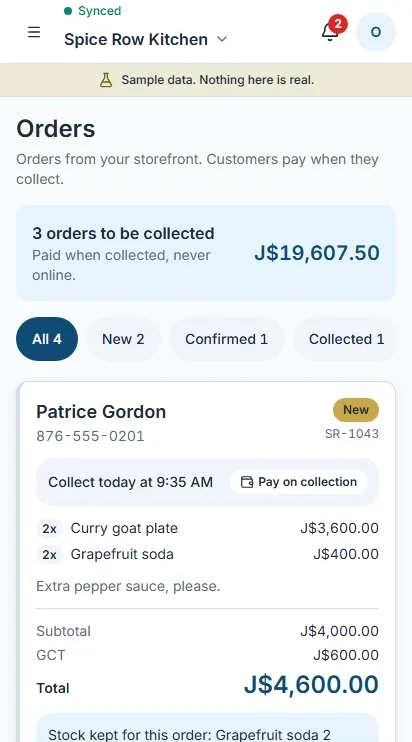
Orders hold stock once you confirm.
Every order moves through five statuses you control.
- NewJust arrived. Check it and reply.
- ConfirmedYou said yes. Stock is held for it.
- ReadyPacked and waiting.
- CollectedHanded over and paid. It becomes a sale.
- CancelledStock is released.
Bookings for seven kinds of business.
One booking engine, set up for how you work. Pick a kind to see what Operate handles.
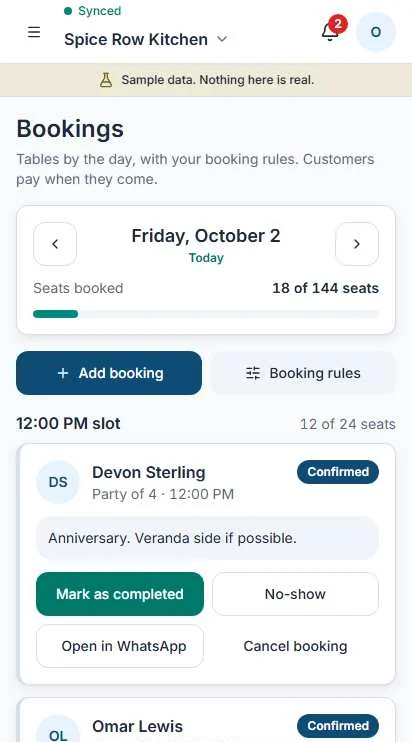
A restaurant takes a party of four at 12:00.
- Seats booked against your seats per slot.
- Your booking rules, and a note per booking.
- Mark completed or no-show, and open WhatsApp to the guest.
A salon books a cut with a chosen stylist.
- A book for each stylist.
- Visit pay, taken when the customer comes in.
- Chair rent for stylists who rent a chair.
A guesthouse books a room for three nights.
- Nights, counted for you.
- A guest bill that collects room and extras.
- A check-in list for the day.
A hire business rents out a sound system for the weekend.
- Dates, so the same item is not hired twice.
- What is out and what is back.
- The hire charge, ready to invoice.
A guesthouse lets its meeting room by the hour.
- Hours held, with no double booking.
- A price for the space.
- The booking on the customer's record.
A joiner visits a house to measure for kitchen doors.
- The visit in your diary, with the address.
- Quote to job: the quote becomes a deal, and a won deal becomes a job.
A caterer books a Saturday party for 40.
- The date and the headcount.
- A quote, then an invoice you send yourself.
The screen shown is from a sample restaurant. Sample data, nothing here is real.
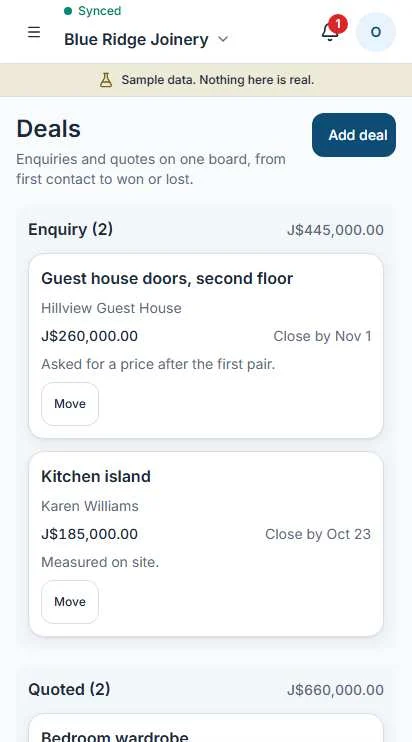
Every enquiry on one board.
Move a deal as it moves. The board adds up what is in each stage.
Enquiry
Someone asked for a price.
Quoted
You sent a number. Now you wait.
Won
Operate drafts the invoice. You review it and send it.
Lost
It did not happen. The record stays.
Be easy to find.
Google Business Profile checklist
A short list of what to fill in so people nearby can find you, with ticks as you go.
Promo image maker
Pick a product and a price and get a simple image to post or send on WhatsApp.
Reviews
Prepare a message asking a happy customer for a review. You send it yourself.